Detour: Make a Map in ChatGPT or Claude and Open It on iPhone
I made Detour for a problem I kept running into: I’d ask ChatGPT or Claude for places to visit, get a good list, and then have to copy everything into a map myself.
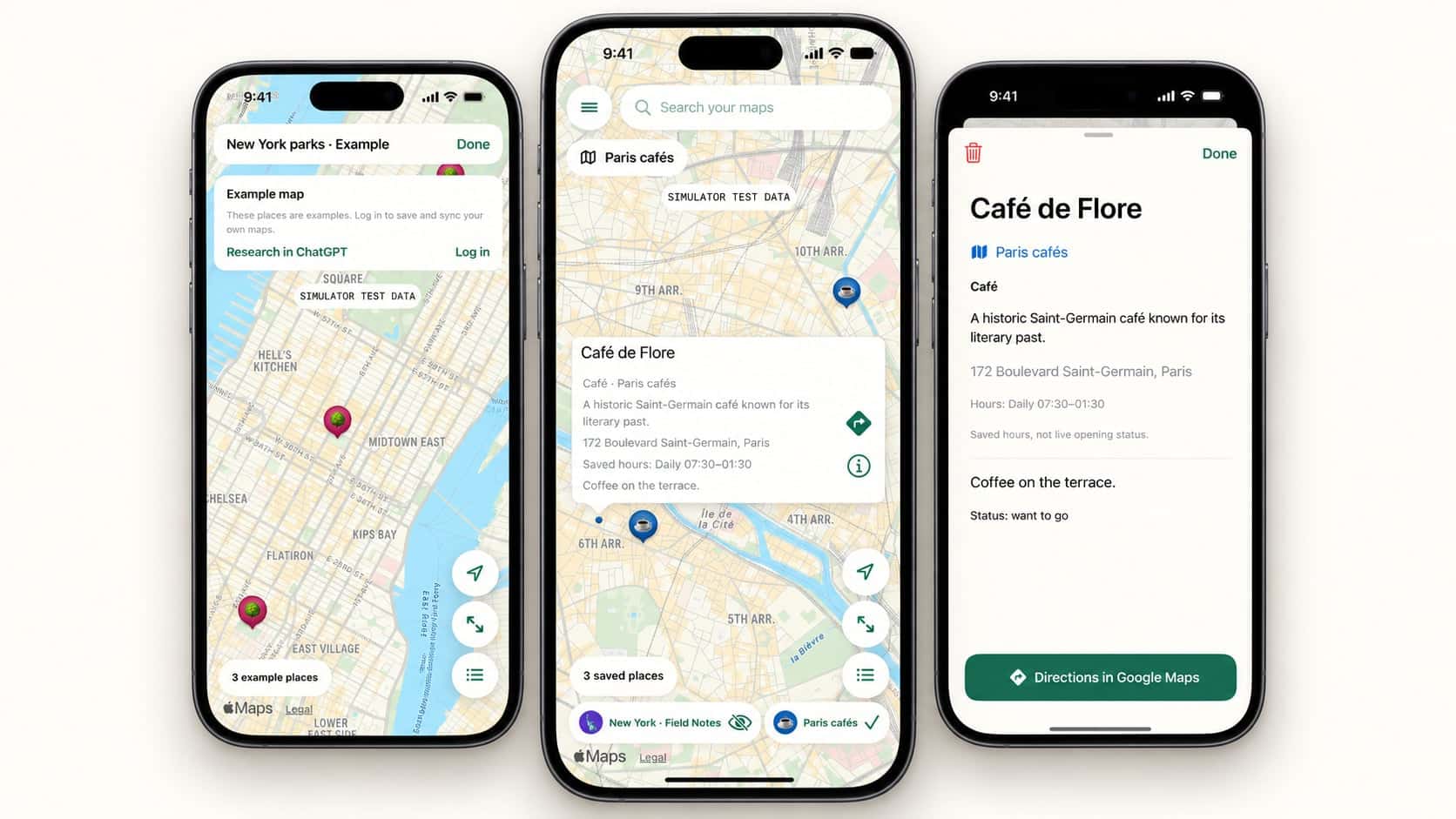
If you’ve been looking for a way to put places from your ChatGPT searches on a map, Detour lets you choose the places worth keeping and save them to a private map. You can do the same thing in Claude. Then you open the map in the Detour iPhone app when you’re out.
Make a map in Claude or ChatGPT
Connect Detour to your assistant, then ask for something like “Make me a map of bookshops in Paris.” You can ask follow-up questions, add places, change a note, or remove a stop. Your assistant researches the places; Detour saves the ones you ask it to save.
Detour uses an MCP connection to do this. The connection guide on the Detour site has the current steps for ChatGPT and Claude, including the server address. The public ChatGPT listing is still under review, so availability there depends on your account’s custom connection options.
Take the map with you
Sign in to the iPhone app with the same Detour account. You can browse your maps, see saved places and notes, and open directions in Google Maps. The app is mainly for using a map while you’re out; you can go back to the conversation when you want to change it.
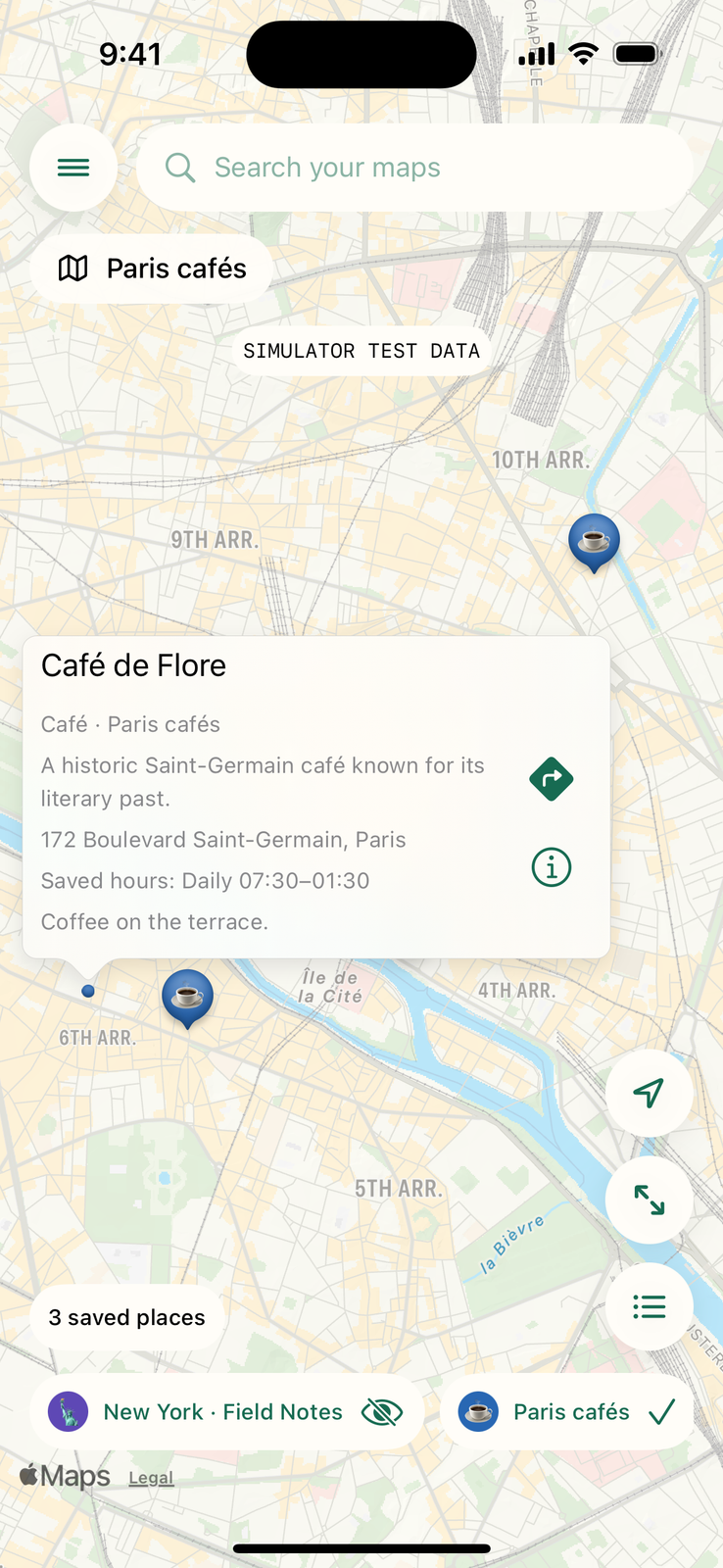
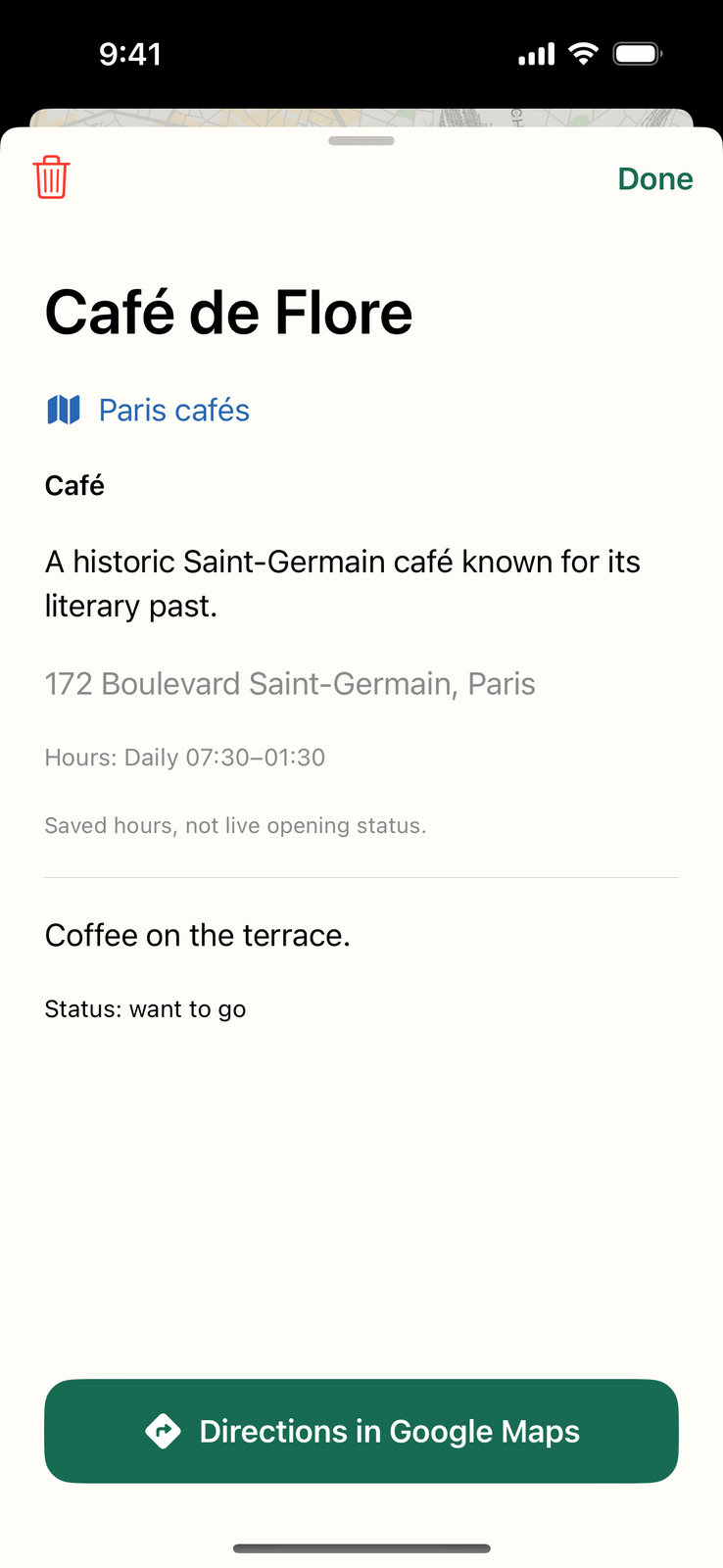
Your maps stay private to your account. You can try an example map in the app before signing in, but you’ll need an account to save and sync your own maps.
If you use both assistants and aren’t sure which one to start with, I’ve also compared ChatGPT and Claude. Detour works with either, subject to the connection options available to you.
You can get Detour on the App Store and read the setup guide on its site. If you already have a list of places buried in a chat, ask your connected assistant to turn the ones you want into a map.