
How to Create a Custom Ringtone on an iPhone
You can make a custom iPhone ringtone from a short audio file without connecting your phone to a computer. On iOS 26 and later, save an MP3 or M4A clip in Files, tap Share, then Use as Ringtone. The clip needs to be 30 seconds or shorter.
I switch between Google Pixel phones and iPhones, and I still like giving calls a sound that makes me smile. The chorus of “I’m Just Ken” from the Barbie soundtrack does that for me. You can use a recording of your own, a sound effect, or a song file you have the right to use.
Updates
- October 2026: Added the direct Files method for iOS 26 and later.
- Corrected the maximum clip length to 30 seconds and added GarageBand steps for trimming on the iPhone.
Set a short audio file as your ringtone
Start with an MP3 or M4A file that lasts no more than 30 seconds. Save it in the Files app on your iPhone. A clip in iCloud Drive is fine once it has downloaded to the phone. If you have the file on a Mac, AirDrop it to your iPhone and save it to Files.
- Open Files and find the audio file.
- Press and hold the file, then tap Share.
- Scroll down the share sheet and tap Use as Ringtone. If you don’t see it, scroll through the actions below the app icons.
- Your iPhone opens the ringtone list in Settings. Tap the new tone so a check mark appears beside it. You can return later through Settings → Sounds & Haptics → Ringtone.
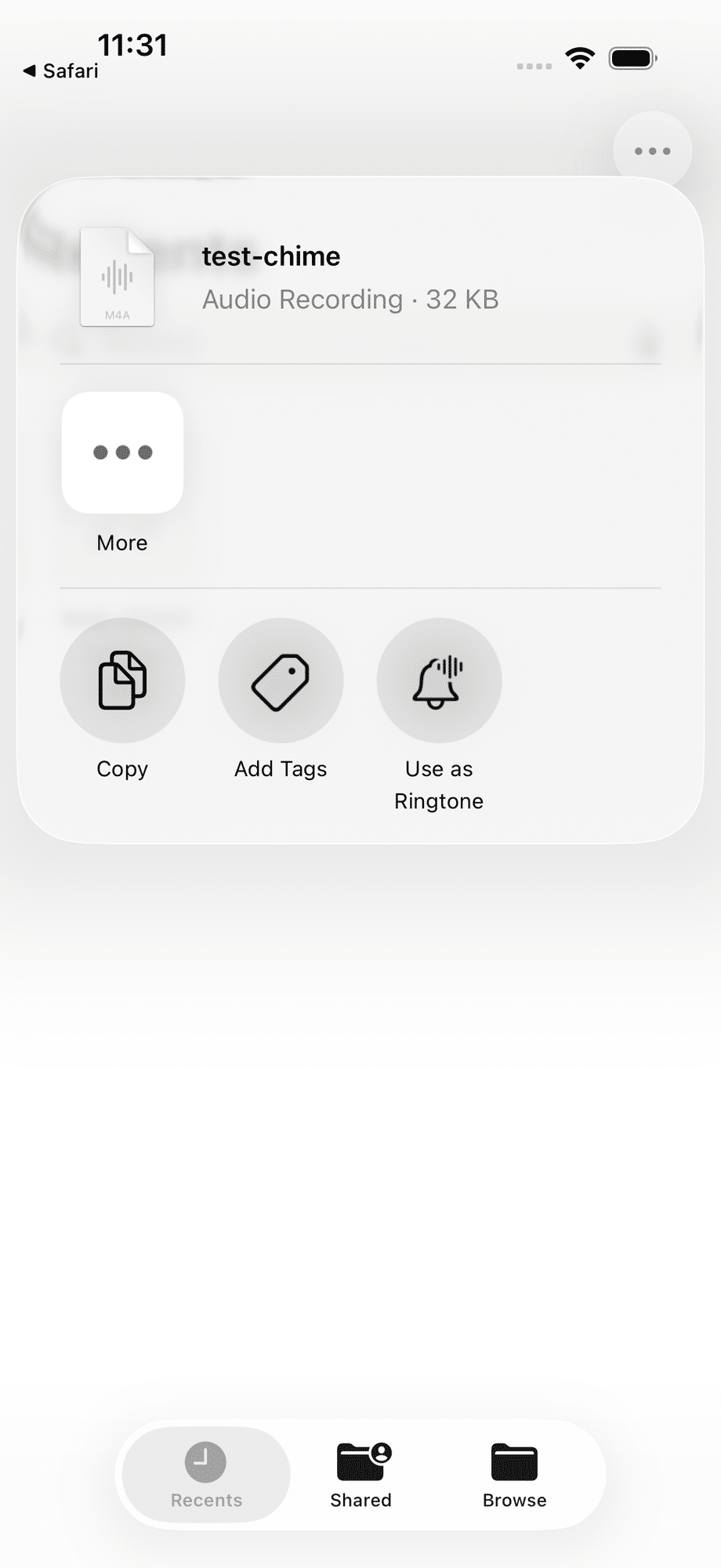
That’s the whole transfer. You don’t need to turn the file into M4R or drag it into Finder. The direct Files action arrived with iOS 26 and is also available in iOS 27, as this updated iOS guide confirms. If it doesn’t work on your phone, check your iOS version and the length and format of the file.
Trim a song or recording on your iPhone with GarageBand
If the bit you want sits inside a longer recording, Apple’s GarageBand method lets you cut it on the iPhone and export it as a ringtone. GarageBand is free. This also works on iPhones that don’t have the Files action.
- Install and open GarageBand. Touch and hold its icon, then choose Create New Audio Recording.
- Tap the Tracks button, select the track, then tap Loops Browser → Files → Browse items from the Files app. Find your audio file.
- Touch and hold the file, then drag it into the track area. Move the clip to the start and drag its ends to keep the part you want. Keep it to 30 seconds or less.
- Tap the navigation button and choose My Songs. In the browser, tap More → Select, select your song, then tap Share → Ringtone. Give it a name and tap Export.
- Tap Use sound as to set it as the standard ringtone, a standard text tone, or a ringtone for a contact. You can also choose it later in Settings → Sounds & Haptics → Ringtone.
A song from an Apple Music subscription isn’t a loose audio file you can save to Files. Apple says protected songs can’t be used in GarageBand for a ringtone either. Start with a file you own or a recording you’ve made.
Trim the clip on a Mac if that’s easier
I find it quicker to cut a precise chorus on a larger screen. Audacity works for that: open your audio file, select the part you want, cut it to 30 seconds or less, then export an MP3 or M4A. AirDrop the clip to the iPhone, save it in Files, and follow the first method above.

If Use as Ringtone doesn’t appear
- Check that the file is an MP3 or M4A and lasts 30 seconds or less. A longer file may show the action, then fail when you tap it.
- Make sure you can play the file from Files. Download it first if it’s only in cloud storage.
- If your iPhone runs an older iOS version, use the GarageBand steps above.
- If you’re starting with a protected Apple Music track, use an audio file you can actually edit instead.
Once it’s in your ringtone list, you can switch back to another tone any time in Settings → Sounds & Haptics → Ringtone. Apple also lets you assign a different ringtone to a contact, which is handy if you only want the chorus when a certain person calls.





I don’t have a MacBook. What should I do?
Sorry, I don’t know! I’d be guessing or looking up other guides to tell you. But if you find out, I’d be interested to know.
If you have any Mac (it doesn’t have to be a MacBook), that will work.
If you don’t have a Mac at all, then download the linked software below, and that should work:
https://support.apple.com/en-us/118290
Perfect solution. Just what I was looking for. Thanks!
I’m glad!
Thank you , it worked i was able to use your instructions to put a ringtone on my iphone.
Glad to hear it, having it work for strangers across the world is all I was aiming for! Thanks for letting me know.
FINALLY!!!!
Thank you for this!!
I’ve tried several methods from Apple support to a bunch of so-called “Mac Experts” but this one hit a home run on the first try. I’m feeling all fuzzy inside!
I’m so glad it worked for you, too! (And I swear to take this post down when it no longer works…)
Simple and efficient! Thanks.
a very simple solution for creating ringtones from youtube/ general videos in mp4:
run this in the macs command line: ffmpeg -i “in-file.mp4” -c:a copy -vn -dn -t 29.99 “out-file.m4r”
some explanation:
from my limited understanding mp4 video uses aac audio, and audio_file.aac can be renamed to audio_file.m4r and its a functioning ringtone. so, if you got an .aac file, you don’t need a website to convert to m4r, just rename it.
(of course all this assumes that you know how to navigate the console. please don’t run this command without knowing how to navigate the console.)
(this should also work on linux.)
This is awesome. Congratulations “Theoretically Hugo”, you’ve made the single most useful comment I’ve ever received! ????